
The Timeline displays the tasks, milestones, and phases of a project on a shared timeline. This allows you to see at a glance when tasks are scheduled, how long they take, which dependencies exist, and who is responsible for completing them.
The visual representation makes it easier to identify chronological relationships, overlaps, and potential delays. The Timeline therefore supports you with planning and helps the entire project team quickly understand the current project progress.
Open the Timeline
- Open the desired project.
- Click
Timelinein the project navigation.
The project’s tasks and milestones are then displayed along the timeline.
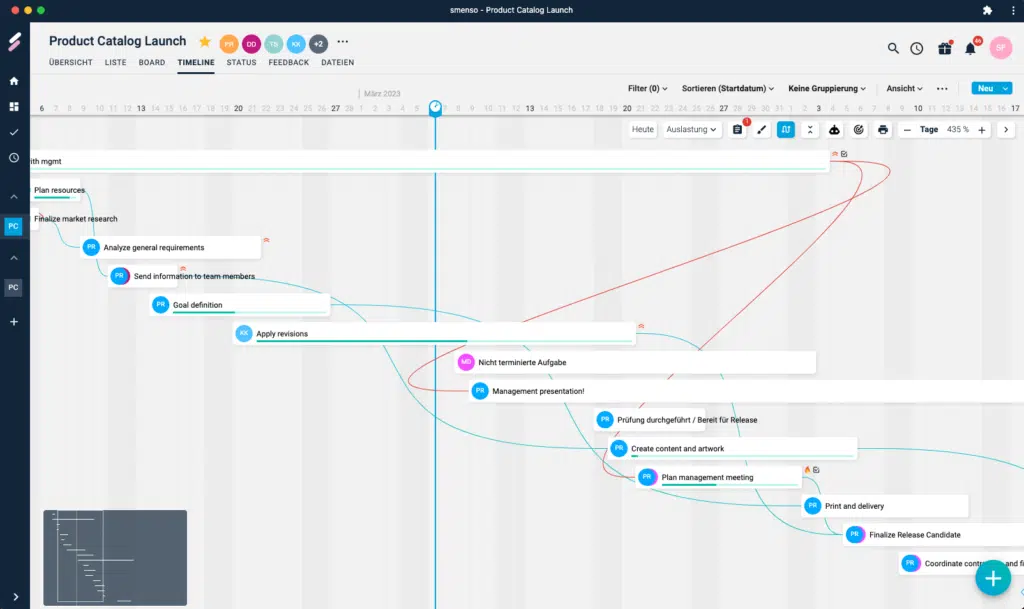
Structure of the Timeline
The Timeline combines the chronological project progress with the most important information about the individual planning elements.
-
Tasks
Tasks are displayed as bars or cards. Their position indicates the planned time period, while their length represents the duration of the task. -
Milestones
Milestones mark important events or dates within the project and are displayed as diamonds. -
Phases
Phases group related tasks and project sections together over time. -
Dependencies
Connection lines indicate which tasks or milestones build on one another chronologically. -
Responsibilities
Profile pictures or initials on the tasks indicate who is responsible for completing them. -
Current date
A vertical blue line marks today within the schedule. -
Task status
Status icons indicate the current progress. Completed tasks are identified, for example, by a green checkmark.
Edit tasks in the Timeline
The Timeline is not only an overview, but can also be used directly for scheduling.
- Click a task to open the task details.
- Move a task using drag & drop to adjust its planned time period.
- Drag the beginning or end of a bar to change the task’s time period.
- Connect tasks or milestones to create dependencies.
This allows you to edit the project plan directly in its chronological representation and immediately view changes in the overall context.
Note
The Timeline uses the same tasks as the other project views. Changes to tasks, dates, responsibilities, or dependencies are therefore applied immediately throughout the entire project.
Identify dependencies
Dependencies show which tasks must be completed in a specific order. This makes it easier to identify which tasks block other work steps or depend on previous tasks.
The connections are displayed directly between the affected tasks or milestones. This allows you to understand the project flow and better assess the possible effects of a schedule change.
When you move the mouse pointer over a task, the associated dependencies and connections are highlighted.
Navigation and zoom
You can use the toolbar to adjust the displayed time period and level of detail in the Timeline.
- Use the
+and-buttons to zoom in or out of the timeline. - Use the time unit to display the Timeline by days, weeks, or larger time periods, for example.
- Click
Todayto jump directly to the current date. - Use
CTRL+mouse wheelto zoom in or out directly in the Timeline. - Use
Shift+mouse wheelto move horizontally to the left or right.
The overview map in the bottom left shows the entire project timeline in a reduced view. The highlighted section corresponds to the currently visible area and can be moved to quickly jump to another section of the schedule.
Benefits of the Timeline
The Timeline is particularly useful when you need a quick visual overview of a project’s progress. It helps you:
- place scheduled tasks and milestones in chronological order,
- identify dependencies and consecutive work steps,
- make parallel tasks and chronological overlaps visible,
- identify delays or bottlenecks at an early stage,
- coordinate the project progress clearly with the team.
Note
The more completely start and due dates, responsibilities, milestones, and dependencies are maintained, the more informative the project’s representation in the Timeline will be.
Further information
You can find more instructions for working with the Timeline in the following articles:
Comments
0 comments
Please sign in to leave a comment.